TL;DR: A white-label client portal lets clients log in at youragency.com — not a third-party platform — to see their projects, invoices, contracts, and approvals under your own branding. AgenciesWP adds this as a built-in WordPress feature: one shortcode creates an 8-section portal (dashboard, projects, invoices, payments, approvals, discussions, contracts, new request), clients log in with just an email and Client ID (no WordPress account needed), and setup takes under 10 minutes. It’s self-hosted, starts at $79/year, and includes Stripe payments, e-signed contracts, and time tracking — unlike SaaS portals like SuiteDash or Clinked, which bill monthly and keep your client data on their servers.
Your clients don’t care which tools you use to run your agency. They care about one thing: does working with you feel professional?
Nothing undermines that more than sending clients a link that lands on someone else’s platform — with someone else’s branding, someone else’s domain, and a login page that screams “my agency uses a generic SaaS tool.”
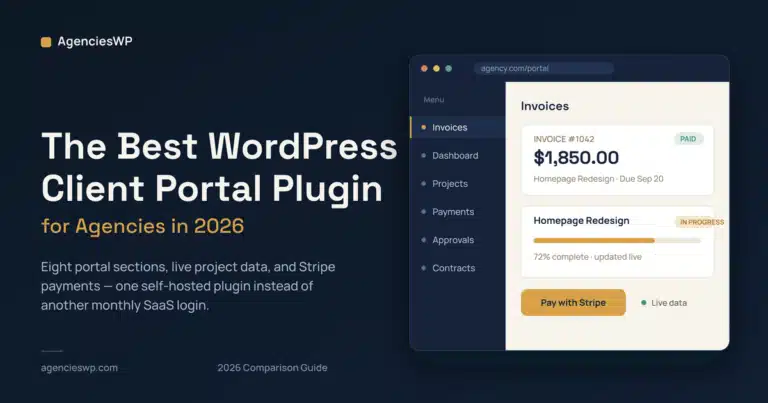
A white-label client portal fixes this completely. Your clients log in at youragency.com/portal. They see your logo. They see your brand colors. They never see the words “Powered by” anyone else.
In this guide you’ll learn exactly how to set up a fully white-labeled client portal inside WordPress — with projects, invoices, contracts, approvals, discussions, and Stripe payments — using one plugin and one shortcode.
What Is a White-Label Client Portal?
A white-label client portal is a private, branded area on your website where clients can log in and access everything related to their projects with you.
Instead of emailing back and forth or sending clients to a generic third-party platform, they log in to your site, see your brand, and find everything in one organized place:
- Their project status and milestones
- Invoices and payment history
- Contracts to review and sign
- Files and deliverables to approve
- A discussion channel for feedback and requests
- A form to submit new project requests
Done right, a client portal makes your agency look significantly more professional than 90% of your competitors — most of whom are still emailing PDFs and using Google Drive shared folders.
Why WordPress Is the Best Place to Build Your Client Portal
Most client portal solutions are SaaS tools — separate platforms with their own domains, their own branding, and monthly fees that grow as your team grows.
The problem with SaaS portals:
- Your client portal is on their domain, not yours
- Their branding bleeds through no matter how much you customize
- Your data lives on their servers — not in your control
- You pay per user or per client — costs compound as you grow
- It’s disconnected from your WordPress site — your main home base
WordPress solves every one of these problems. Your portal lives on your domain. Your theme’s header and footer wrap around it automatically. Your client data lives in your own database. And because it’s WordPress, you can customize anything.
What You Need: AgenciesWP
AgenciesWP is a self-hosted WordPress plugin that includes a complete white-label client portal as one of its core features. You don’t need a separate portal plugin, a separate invoicing plugin, or a separate contract tool — it’s all in one place.
The client portal includes 8 sections:
- Dashboard — Overview of active projects, invoice balance, and recent activity
- Projects — Full project list with milestones, files, and progress status
- Invoices — All invoices with status (Paid, Sent, Overdue)
- Payments — Open payment requests with Stripe pay buttons
- Approvals — Deliverables waiting for client approval or feedback
- Discussions — Threaded project conversations
- Contracts — Contracts to view and e-sign
- New Request — Form for clients to submit new project ideas
And clients log in with their email + a unique Client ID — no WordPress account, no password reset headaches, no friction.
Step-by-Step: Setting Up Your White-Label Client Portal
Step 1 — Install AgenciesWP
Purchase a license at agencieswp.com/pricing/. After checkout you’ll receive your license key and a download link for the plugin ZIP file.
In your WordPress admin go to Plugins → Add New → Upload Plugin. Choose the ZIP file and click Install Now, then Activate.
When the plugin activates, it automatically creates a page called “Client Portal” with the shortcode pre-installed. Your portal is already live — you just need to configure it.
Step 2 — Set Up Your Company Branding
Go to Agencies WP → Settings → Company.
Fill in:
- Company name — appears on invoices and in the portal header
- Company logo — upload a PNG with transparent background (recommended 300×100px). This replaces any generic branding on invoices.
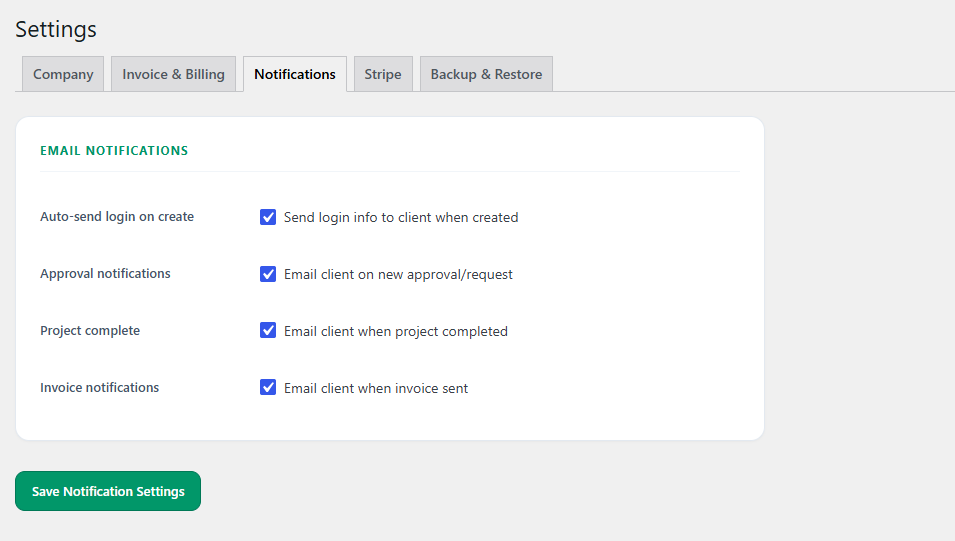
- Email address — used for notification emails to clients
- Phone and address — appears on invoice PDFs
Click Save Company Settings.
This is the only branding setup you need. Because the portal is a page on your WordPress site, it automatically inherits your theme’s header, footer, fonts, and colors. Your portal looks like your website — not like a third-party tool.
Step 3 — Configure the Portal Page
Go to Pages in your WordPress admin and find the “Client Portal” page that was auto-created on activation.
By default it contains:
[agencieswp_client_portal]That’s it. One shortcode. The entire portal — all 8 sections — renders from that single line.
You can:
- Rename the page to anything you like: “My Account”, “Client Area”, “Your Projects”
- Change the URL slug:
yourdomain.com/client-area/instead of/client-portal/ - Add it to your navigation menu so clients can find it easily
- Move it to any page on your site — just paste the shortcode
If you use a page builder like Elementor, Kadence, or Divi, you can wrap the portal in your custom layout, add a hero section above it, or match it to any page design on your site.
Step 4 — Add Your First Client
Go to Agencies WP → Clients → Add New.
Fill in the client’s name, company, email address, and billing details. The system automatically generates a unique Client ID (like CL393866) for this client.
When you’re ready to give the client portal access, send them:
- The portal URL (e.g.
yourdomain.com/client-portal/) - Their registered email address
- Their Client ID
That’s their login. No WordPress account needed. No password to set up. They enter their email + Client ID and they’re in.
Step 5 — Connect Stripe (Optional but Recommended)
If you want clients to pay invoices directly from the portal:
Go to Agencies WP → Settings → Stripe.
Check Enable Stripe, then enter your Stripe Publishable Key and Secret Key. You can find these in your Stripe Dashboard under Developers → API Keys.
Save. Done.
Now every invoice and payment request in the client portal shows a green Pay with Stripe button. Clients click, enter their card, and the invoice status updates to Paid automatically. You don’t have to chase anyone.
Step 6 — Create a Project and Assign It to the Client
Go to Agencies WP → Projects → Add New.
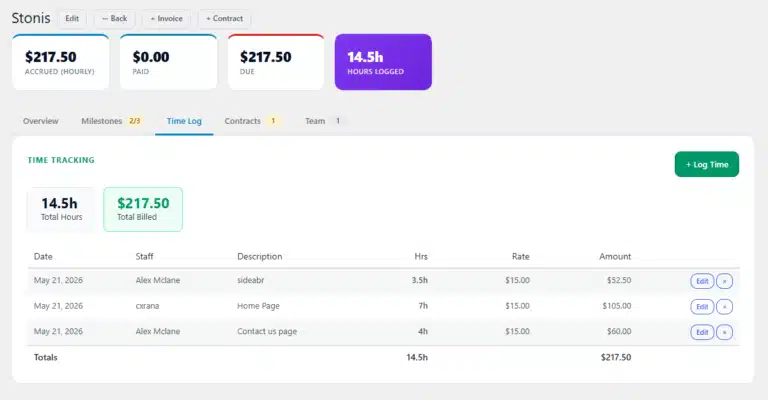
Fill in the project name, description, select the client, and choose your budget type (Hourly or Fixed). Add milestones if needed.
Save the project.
The client can now log in to their portal and see this project under Projects. They can see milestones, files, and progress without you sending a single status update email.
What Your Clients See
Here’s what the client experience looks like after you’ve set everything up:
Login page — Client visits yourdomain.com/client-portal/ and sees a clean login form. They enter their email and Client ID. No username, no password to remember, no “Forgot password?” frustration.
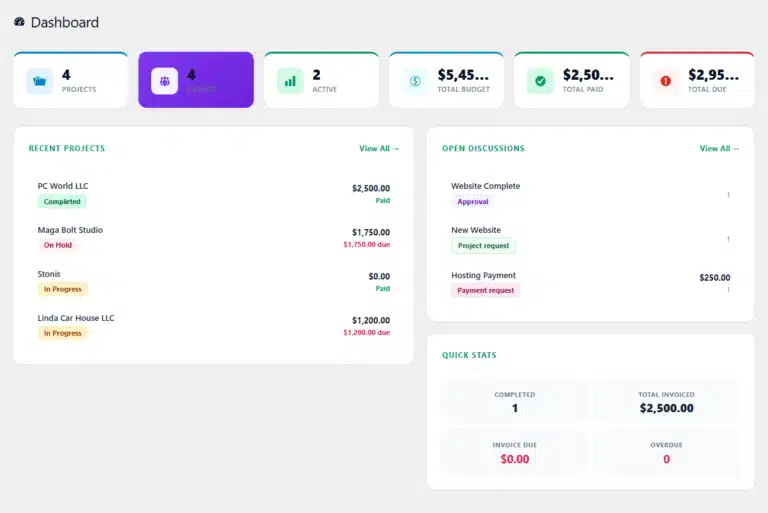
Dashboard — After login they see a summary card: number of active projects, total invoiced, total paid, and outstanding balance. Clean, professional, informative.
Projects tab — They see all their projects with status badges (In Progress, On Hold, Completed). Clicking a project shows milestones with completion status, uploaded files, and team members assigned.
Invoices tab — All their invoices listed with status. They can view each invoice, download it as PDF, and click Pay if it’s unpaid (Stripe button appears automatically).
Approvals tab — If you’ve submitted a deliverable for approval, it appears here. They click Approve or Request Changes, leave a comment, and you get notified instantly.
Discussions tab — Threaded conversations per project. No more “re: re: re: re: website feedback” email threads.
Contracts tab — If you’ve sent them a contract, they can read it and type their name to sign. The timestamp and audit trail are recorded automatically.
Tips for Making Your Portal Look More Professional
Use a clean URL. Change the portal slug from /client-portal/ to /portal/ or /my-account/. Shorter is more professional.
Add the portal link to your main navigation. Don’t hide it. Put it in your header as “Client Login” so new clients can find it immediately after you tell them about it.
Send a proper welcome email. When you add a new client, send them a branded email introducing the portal. Include their Client ID, the portal URL, and a short explanation of what they’ll find there. This sets the tone and makes your agency look organized from day one.
Upload your logo in Settings. This one step is the biggest visual upgrade. Your logo on every invoice and in the portal header makes everything feel cohesive and branded — not generic.
Use project names clients recognize. Name projects the way clients think about their work, not the way you do internally. “Q3 Website Redesign” is better than “Stonis-WEB-2026-Q3.”
Add a milestone for every deliverable. Even if a project is simple, adding 3–4 milestones gives clients a sense of progress. A portal with visible milestones looks more professional than a portal where nothing changes.
Comparing White-Label Client Portal Options for WordPress
You have a few options for adding a client portal to WordPress. Here’s how they compare:
| Solution | White-label | Self-hosted | All-in-one | Cost |
|---|---|---|---|---|
| SuiteDash WP plugin | Partial (bridges to SuiteDash) | ✗ SuiteDash servers | ✓ | $228/year + |
| WP Client Portal | ✓ | ✓ | ✗ (portal only) | $149/year |
| Clinked | Partial | ✗ Clinked servers | ✗ | $119+/month |
| AgenciesWP | ✓ Full | ✓ Your server | ✓ | $79/year |
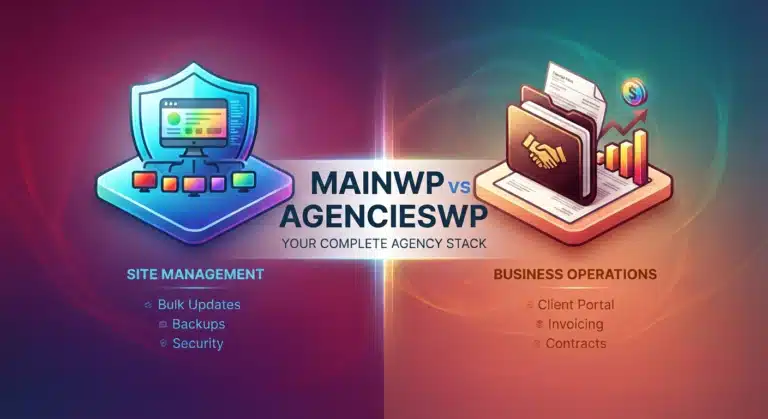
AgenciesWP is the only option that is fully self-hosted, fully white-labeled, and includes invoicing, time tracking, contracts, and team management alongside the portal — not just the portal by itself.
Frequently Asked Questions
Does the portal work with any WordPress theme? Yes. The portal inherits your theme’s header, footer, fonts, and colors automatically. It’s been tested with Kadence, Astra, GeneratePress, Divi, Elementor Hello, and OceanWP. If your theme renders pages, the portal works.
Can I have multiple clients with separate portals? Every client has their own private portal experience. When they log in with their Client ID, they only see their own projects, invoices, and contracts — never anyone else’s data.
What if a client forgets their Client ID? You can find any client’s ID at any time in their client profile under Agencies WP → Clients. Just resend it to them by email.
Can I add the portal to an existing page? Yes. If you already have a page you want to use (for example your existing “Client Login” page), just delete its current content and paste Sign in with your email and Client ID.Client Portal
Does the client portal work on mobile? Yes. The portal is fully responsive and works on phones and tablets. It inherits your theme’s responsive styles.
Can clients upload files to the portal? Currently clients can view and download files you upload to their projects. Client-side file uploads are on the AgenciesWP roadmap.
The Result: What a Professional Client Portal Does for Your Agency
The agencies that implement a proper client portal consistently report the same three outcomes:
1. Fewer “can you send me an update?” messages. When clients can log in and see their project status themselves, they stop emailing you for updates. This saves 30–60 minutes per week per active client.
2. Faster invoice payments. When the pay button is one click away inside the portal clients are already logged into, payment times drop significantly compared to emailing an invoice PDF.
3. More professional first impression. Sending a new client their portal login details on the first day of a project sets a tone. It communicates: this agency is organized, professional, and has systems. That perception justifies higher rates and improves client retention.
A client portal doesn’t just save you time — it actively makes clients more likely to refer you and less likely to leave.
Get Started Today
AgenciesWP starts at $79 per year for a single site license. Installation takes under 10 minutes. Your client portal is live the moment you activate the plugin.
Already installed and need setup help? Check the full documentation for step-by-step guides on every feature.
AgenciesWP is a self-hosted WordPress plugin for agencies and freelancers. Projects, time tracking, invoicing, contracts, and a white-label client portal — one plugin, one annual fee, your data on your server.
Discover more from Agencies WP
Subscribe to get the latest posts sent to your email.