TL;DR: Most agencies track time with spreadsheets or a standalone tool like Toggl — both create a gap between tracking and invoicing, forcing manual re-entry at billing time. AgenciesWP builds time tracking directly into WordPress: log hours per team member at individual hourly rates, watch project costs accrue live, then import unbilled entries into a Stripe invoice with one click — no CSV exports, no re-typing, no double-billing risk. It’s self-hosted, costs $79/year flat for unlimited team members (vs. $360-432/year per 3-person team on Toggl or Harvest), and takes the “ready to invoice” step from roughly 45 minutes down to under 3.
If you run an agency or freelance business, you already know the problem.
You finish a project, sit down to invoice the client, and spend the next 45 minutes digging through notes, Slack messages, and spreadsheets trying to reconstruct how many hours everyone logged. You guess on a few entries. You probably undercharge. The client still pushes back on the total.
It doesn’t have to work this way.
In this guide you’ll learn how to set up proper time tracking inside WordPress — with per-staff hourly rates, live project cost accrual, and one-click conversion of logged hours into invoice line items. No Toggl. No spreadsheets. No separate SaaS subscription.
Why Most Agencies Track Time Wrong
Most agencies track time in one of three broken ways:
1. Spreadsheets — Everyone maintains their own sheet. Data is scattered, inconsistent, and easy to forget. By invoice day, half the entries are missing.
2. Separate time tracking tools — Toggl, Harvest, Clockify. These work fine in isolation but they don’t talk to your invoicing tool. You export a CSV, manually re-enter hours into your invoice, and pray the math is right.
3. Not tracking at all — You bill a flat fee and quietly absorb the overruns. This is the most common one, and it quietly kills agency profit margins.
The fix isn’t a better spreadsheet or another SaaS subscription. The fix is having time tracking, project management, and invoicing in the same place — so the data flows automatically from logged hours to invoice line items without any manual work.
What You Need to Track Time Properly
Before setting up any tool, it helps to understand what proper agency time tracking actually requires:
- Per-staff hourly rates — Your lead developer bills at a different rate than your junior designer. Your tool needs to know this.
- Per-project logging — Time entries need to be attached to specific projects so you can see profitability per client.
- Live budget tracking — As hours are logged, the project’s accrued cost should update automatically. You should never be surprised at invoice time.
- Invoice import — When it’s time to bill, you should be able to select logged entries and have them appear as line items automatically — not re-type them.
- Edit and recalculate — Mistakes happen. You need to correct entries without breaking the project total.
Most time tracking tools handle the first two but fall apart on the last three. That’s where having everything in one plugin changes everything.
Setting Up Time Tracking in WordPress with AgenciesWP
AgenciesWP is a self-hosted WordPress plugin that handles project management, time tracking, invoicing, contracts, and a white-label client portal — all inside your WordPress dashboard. No monthly fees, no per-seat charges.
Here’s how to set up time tracking from scratch.
Step 1 — Create an Hourly Project
Go to Agencies WP → Projects → Add New.
Fill in the project title, description, and select the client from the dropdown. Under Budget Type, choose Hourly. The default hourly rate field will appear — set your base rate here. You can override this per team member in the next step.
Save the project.
Step 2 — Add Team Members with Individual Rates
Open the project and click the Team tab. Use the dropdown to add each staff member who will be working on this project and assign their per-project role (Lead, Member, or Reviewer).
The key feature here: each team member can have their own hourly rate. Your senior developer at $75/hour and your junior designer at $35/hour both log time to the same project — the system calculates each entry correctly based on who logged it.
This is something Toggl and most standalone time tracking tools can’t do without a separate integration.
Step 3 — Log Time Entries
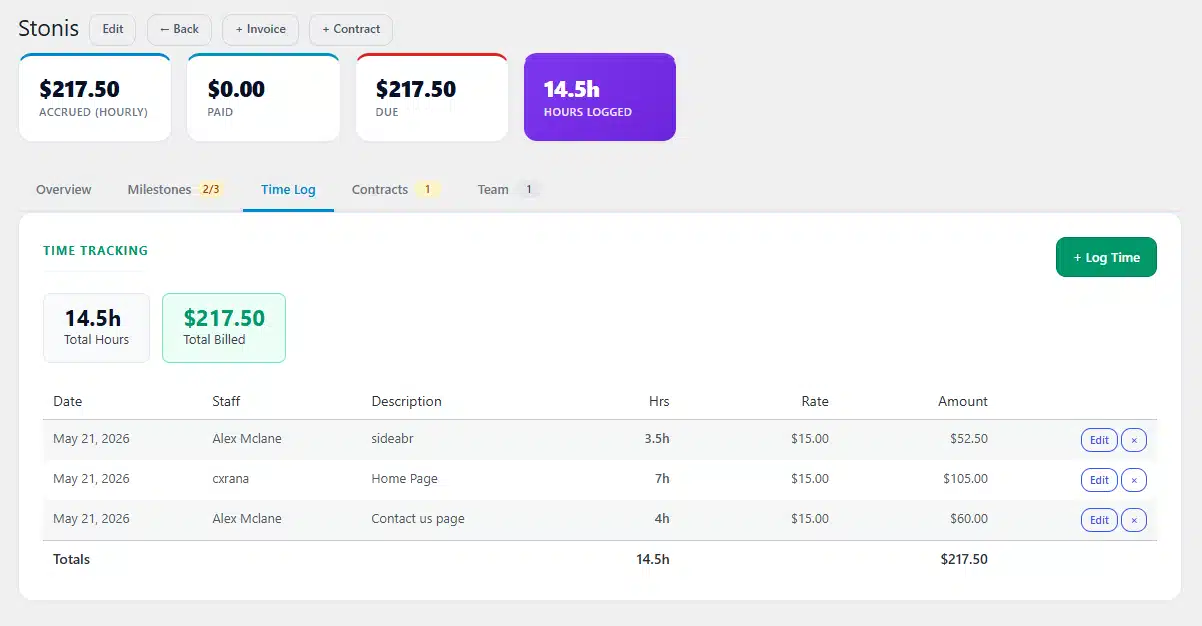
When work is done, open the project and click the Time Log tab. Click + Log Time.
Fill in:
- Date — when the work was done
- Staff member — who did the work
- Hours — how long it took
- Hourly rate — pre-filled from their profile, but editable per entry
- Description — what was worked on (this appears on the invoice)
Click Save. The project’s total accrued cost updates instantly. No waiting, no manual calculations.
Every team member can log their own time, or an admin can log it on their behalf. The project budget panel always shows:
- Total hours logged
- Total cost accrued
- Amount already invoiced
- Outstanding balance
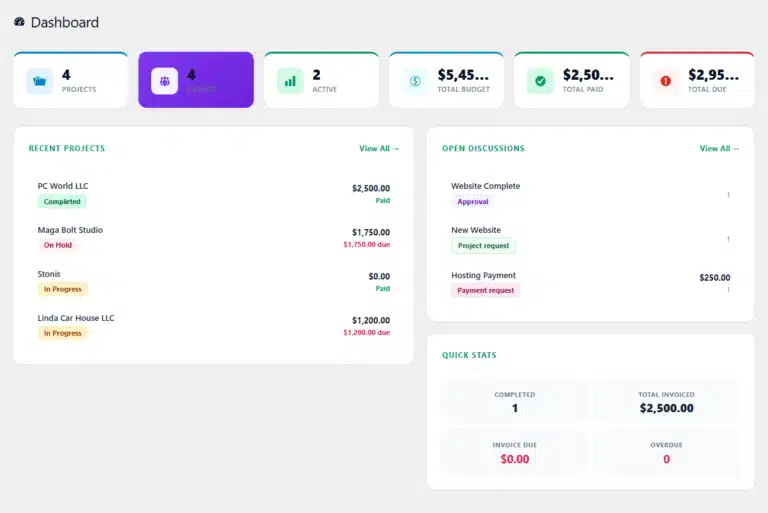
You always know exactly where every project stands before the client asks.
Step 4 — Edit or Recalculate Entries
Made a mistake? Click any time entry to edit the hours, rate, date, or description. The project total recalculates automatically. Previously invoiced entries are locked so you can’t accidentally change what was already billed.
Step 5 — Convert Time Logs to an Invoice
This is the part that saves the most time.
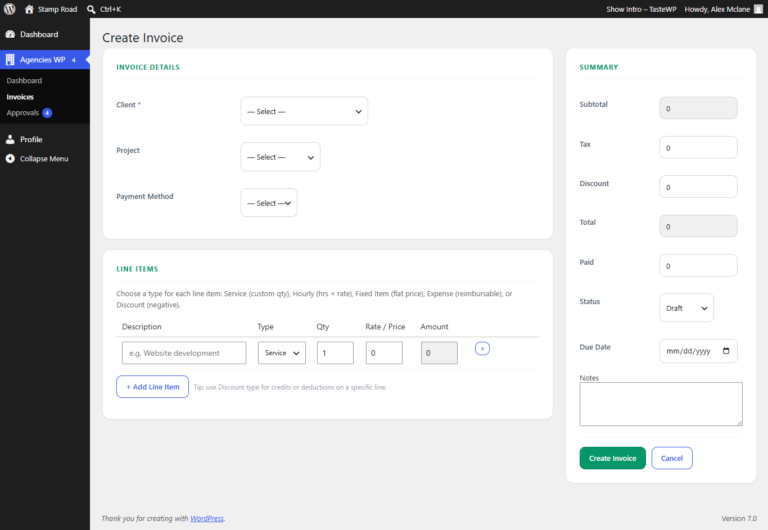
When you’re ready to invoice, click + Invoice from the project page. The Time Log — Import Hourly Entries panel appears, listing all unbilled time entries grouped by team member.
Check the entries you want to bill. Use Select All to grab everything unbilled at once. Click Import Selected as Line Items.
Each entry becomes an Hourly line item on the invoice with:
- The staff member’s name
- Hours worked
- Hourly rate
- Calculated total
Add tax or discount if needed, write a note to the client, and click Create Invoice. The client receives the invoice in their portal with a Stripe payment button if you have Stripe enabled.
Already-invoiced entries are automatically hidden from future imports. You can’t accidentally bill the same hours twice.
Real Example: What This Looks Like in Practice
Here’s a real scenario to make this concrete.
You’re running a website project for a client called Stonis. Three team members work on it over two weeks:
| Staff | Hours | Rate | Total |
|---|---|---|---|
| Alex (Lead Dev) | 12h | $75/hr | $900 |
| Rana (Designer) | 8h | $45/hr | $360 |
| Sam (Content) | 4h | $30/hr | $120 |
Total accrued: $1,380
Without a proper system, you’d reconstruct this from memory at invoice time. With AgenciesWP, the project page shows this breakdown in real time as entries are logged throughout the two weeks.
On invoice day, you click Import, all 24 entries populate as line items, you add a 10% tax, and send. The client sees a detailed, professional invoice that shows exactly what they’re paying for. Payment comes through Stripe. The invoice status updates to Paid automatically.
The whole process from “ready to invoice” to “invoice sent” takes under 3 minutes.
Comparing Time Tracking Options for WordPress Agencies
You have several options. Here’s how they stack up:
| Tool | Self-hosted | Invoice import | Per-staff rates | Cost |
|---|---|---|---|---|
| Toggl | No | No (manual export) | Yes | $10+/user/month |
| Harvest | No | Partial | Yes | $12/user/month |
| Clockify | No | No | Yes | Free–$8/user/month |
| AgenciesWP | Yes ✓ | Yes ✓ | Yes ✓ | $79/year flat |
The difference isn’t just price. It’s that with standalone tools you always have a gap between tracking and billing. You export, re-enter, and manually reconcile. With AgenciesWP, the data flows directly from time log to invoice — one click, no gaps.
For a 3-person agency, Harvest costs $432/year. Toggl costs $360/year. AgenciesWP costs $79/year for unlimited team members.
Tips for Getting Time Tracking Right
Log daily, not weekly. The longer you wait to log time, the less accurate your entries become. Encourage your team to log at end of each workday while the work is fresh.
Use the description field. When you convert logs to invoice line items, the description appears on the invoice. “Built contact form” is more professional than “Development work” and reduces client questions.
Set rates before starting a project. If you change a team member’s hourly rate after entries are logged, the new rate doesn’t retroactively change existing entries. Always set rates before the first log.
Review the budget panel weekly. The live accrual panel shows you exactly where a project stands financially. Check it every week — not just at invoice time. If a project is approaching its budget, you catch it early enough to have a conversation with the client before going over.
Split large projects into phases. If a project runs for 3 months, consider invoicing monthly by importing that month’s time logs. This improves cash flow and keeps the client informed about progress.
Common Questions
Can clients see the time log? No. The time log is internal to your agency. Clients see the invoice line items (which are generated from the log) but not the raw log itself.
What if a team member has different rates for different projects? Rates are set per time entry, not globally per staff member. So you can have the same developer at $75/hr on one project and $60/hr on a discounted client project.
Can I track time without invoicing? Yes. Time tracking and invoicing are independent features. You can log time for reporting and cost-tracking purposes without ever creating an invoice.
Does it work for fixed-price projects too? Yes. For fixed-price projects, you can still log time (for internal cost tracking and profitability reporting) but the logged hours won’t appear in the invoice import panel. Only hourly projects have the time-to-invoice import feature.
Getting Started
If you’re still tracking time in spreadsheets or juggling separate tools for tracking and billing, the gap between your current process and what’s described here is one plugin install away.
AgenciesWP installs like any WordPress plugin. After activation, it creates your dashboard, all database tables, and the client portal page automatically. You can be logging time on your first project within 10 minutes.
→ See AgenciesWP pricing and get started
Or if you want to see the time tracking interface before buying:
AgenciesWP is a self-hosted WordPress plugin for agencies and freelancers. One annual license. No monthly fees. Unlimited clients, projects, and team members.
Discover more from Agencies WP
Subscribe to get the latest posts sent to your email.