
Recurring invoices, PayPal & reminders
Retainer billing cycles, PayPal checkout and automatic overdue reminders.
Bill retainers automatically, let clients pay with PayPal as well as Stripe, and let AgenciesWP chase unpaid invoices for you on a schedule you choose.
Recurring invoices
- Go to AgenciesWP → Recurring and create a new plan, or add one from a project.
- Choose the client, line items and a cycle: weekly, fortnightly, monthly, quarterly, six-monthly or yearly.
- Decide whether each invoice is sent automatically and whether a payment request is raised with it.
- Optionally stop after a set number of cycles, or on a date.
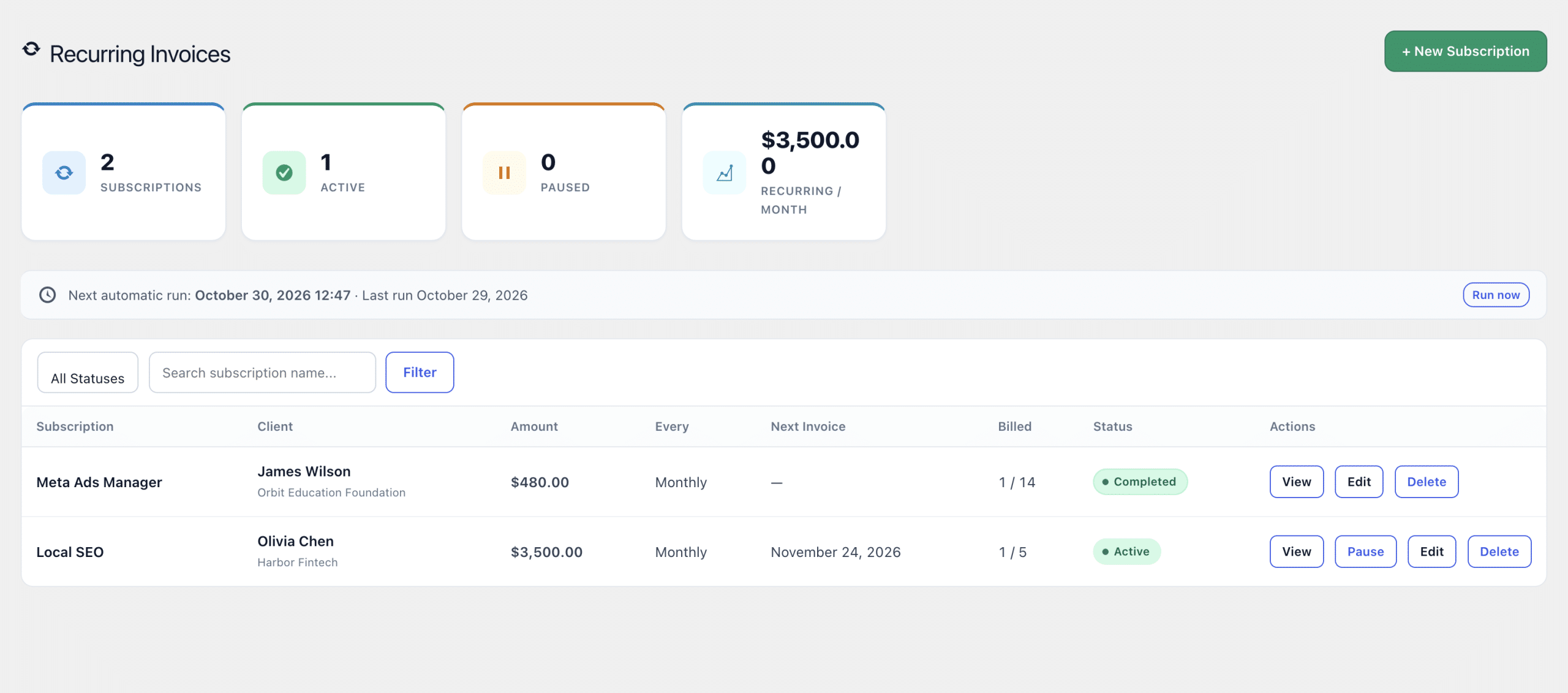
You can pause a plan and resume it later without losing its place. The Recurring screen lists every plan, what it bills, when it next runs and how many cycles have been billed.
Set up PayPal
- In your PayPal developer account, create an app to get a Client ID and Secret, for sandbox and for live.
- Go to AgenciesWP → Settings → PayPal and tick Enable PayPal.
- Choose the environment: Sandbox for testing or Live for real payments.
- Paste the Client ID and Secret for that environment and click Save PayPal Settings.
Every PayPal payment is checked against PayPal’s own record, and the order, amount and currency must match before anything is marked paid.

Payment requests
- Ask a client for money against a project or an invoice, with an amount, a due date and a reference number.
- Clients pay by card (Stripe) or PayPal from the portal, or accept and share payment details, or decline.
Automatic payment reminders
- Go to Settings → Notifications → Overdue Invoice Reminders.
- Turn on Automatic reminders.
- Choose when to send, for example on the due date and a set number of days after.
- Set Stop after to limit how many reminders each invoice receives.
- Optionally tick Include a payment request so each reminder has a payment link.
A daily check marks invoices overdue when their due date passes and sends reminders on your schedule. A client is never emailed twice in one day about the same invoice. The settings screen shows when the check last ran and when it runs next.
Frequently asked questions
Can recurring invoices be sent automatically?
Yes. Each plan can send its invoice automatically and raise a payment request at the same time.
Can clients choose between Stripe and PayPal?
Yes. With both enabled, payment requests show a Stripe button and a PayPal button.
Will clients get too many reminder emails?
No. You set the schedule and a maximum number of reminders, and a client is never chased twice in one day for the same invoice.
Related guides